As AI continues to reshape the SEO landscape, integrating local large language models (LLMs) into your workflow offers new opportunities for speed, control, and privacy. With Ollama, you can run LLMs like LLaMA directly on your machine—no cloud dependencies, no rate limits, and no API costs.

This tutorial walks you through how to connect Ollama to the Screaming Frog SEO Spider, allowing you to configure and run AI prompts in real time during a site crawl. Whether you’re working on technical SEO, content classification, or on-page optimization, running LLMs locally adds a powerful new dimension to your auditing toolkit.
If you want to run LLMs locally without relying on external APIs, Ollama is a great open-source option you can integrate directly with the Screaming Frog SEO Spider. This guide walks you through how to set it up, connect it, and create custom AI prompts for your crawls.
Installing Ollama Locally with Screaming Frog
Step 1: Install Ollama and Your LLM Model
To begin, download and install Ollama on your machine. Ollama allows you to run large language models locally, but you’ll need a fairly modern and powerful computer to support it.
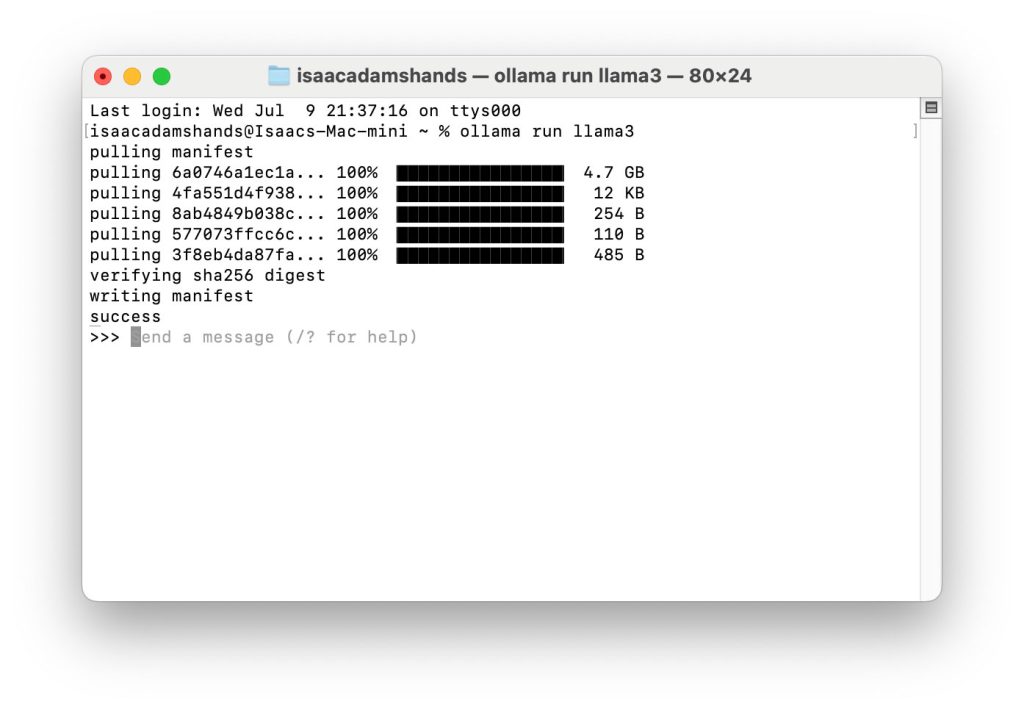
Once installed, open your terminal or command prompt and pull the model you’d like to use. For example, to install LLaMA 3, run the following command:
ollama run llama3This step downloads and initializes the model so it’s ready to be used by Screaming Frog.
Step 2: Connect Screaming Frog to Ollama
Open Screaming Frog and go to:
Configuration > API Access > AI > Ollama
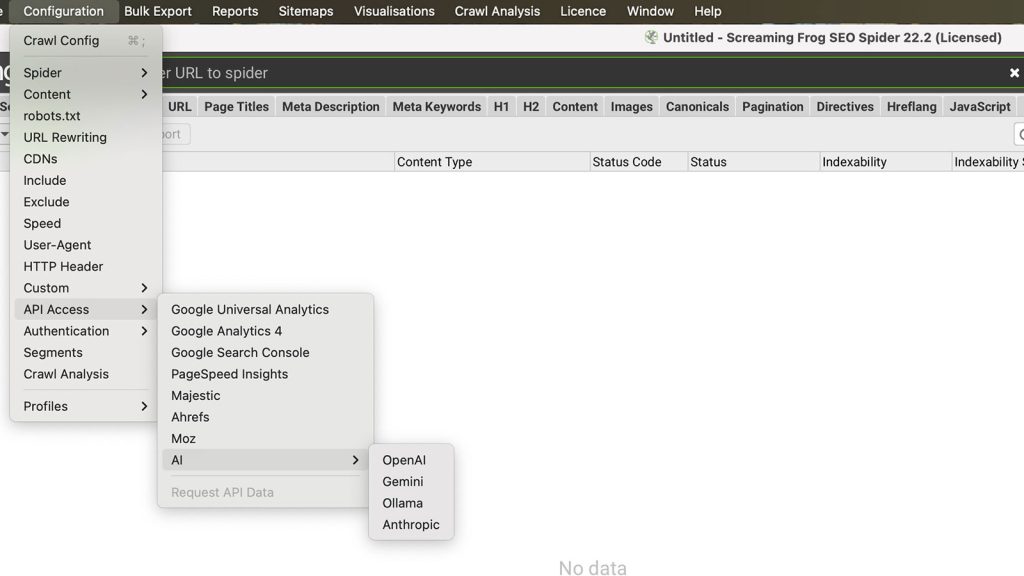
On the Ollama Account Information tab, click Connect to activate the integration.
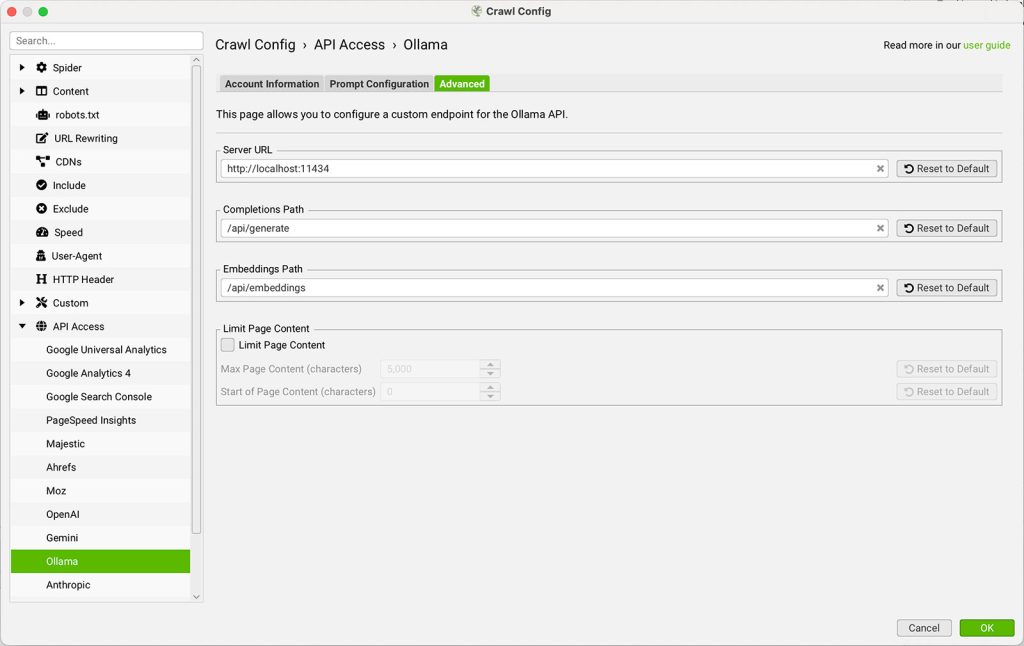
You can leave the Server URL as the default:
http://localhost:11434This tells Screaming Frog to communicate with the Ollama model running on your local machine.
Step 3: Configure AI Prompts
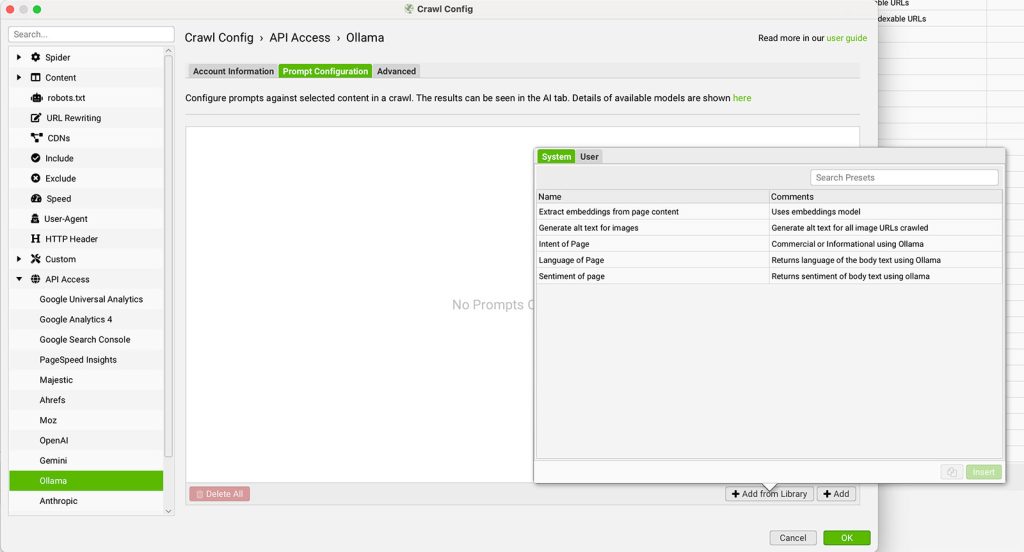
With Ollama connected, head over to the Prompt Configuration tab.
Here you can:
- Set up to 100 custom prompts
- Choose between Chat Completion or Embeddings as the model type
- Select the model name (e.g., llama3)
- Define your input source (like Page Text, HTML, or a custom extraction)
- Write the prompt instructions the model will follow
⚠️ Important: If you’re using Page Text or HTML as your input, you must enable Store HTML under: Config > Spider > Extraction
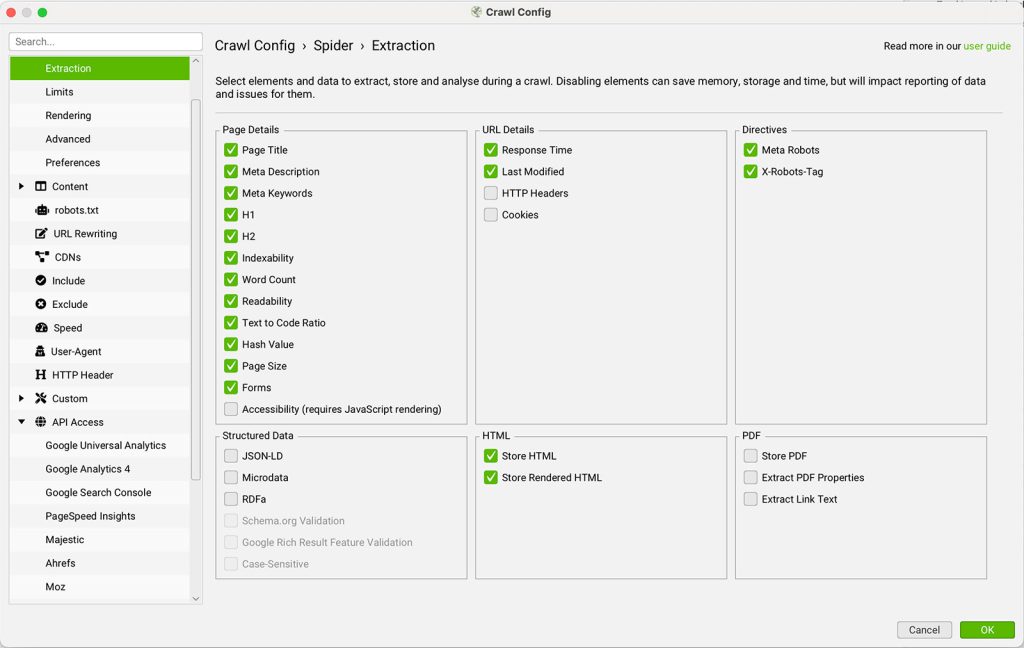
Step 4: Test Your Prompts
Before launching a crawl, it’s a good idea to test your setup:
- Click the play icon next to your prompt
- Enter a sample URL into the Prompt Tester
- Click Test to view the content extraction and the AI’s response
This helps ensure your prompt is working correctly with the selected model.
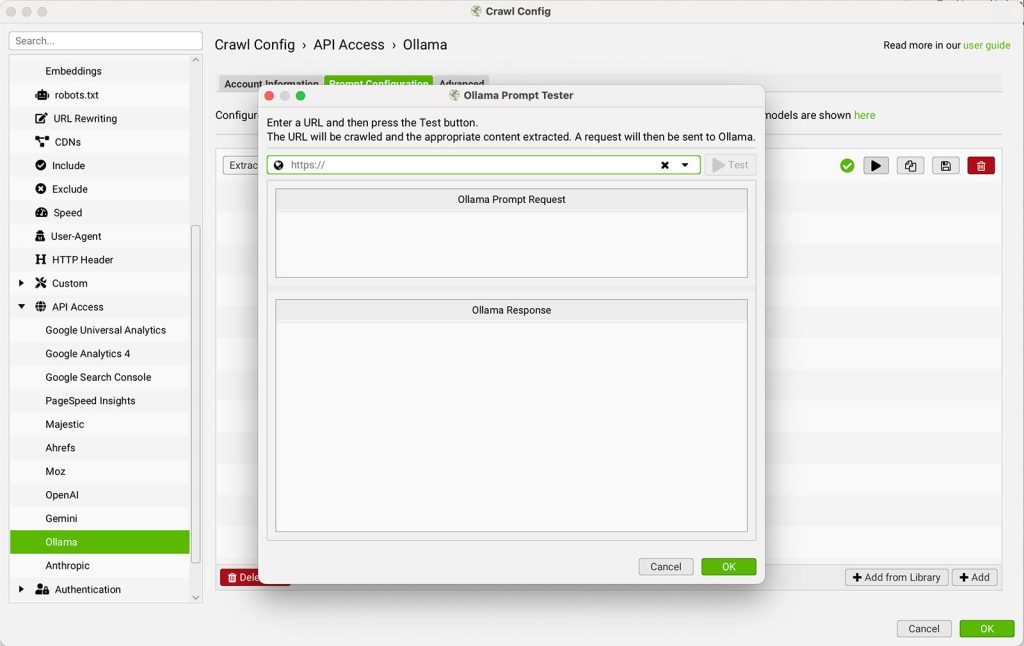
Step 5: Run a Crawl and Review AI Responses
Once everything is in place:
- Start your crawl as usual by entering a URL and clicking Start
- As the crawler processes each page, it will send the configured data to your local Ollama model and return the AI-generated response
You can review this output in the AI tab or alongside crawl data in the Internal tab for further analysis.
Step 6: Use Built-In Prompt Templates
Screaming Frog includes a handful of ready-made prompt examples to get you started.
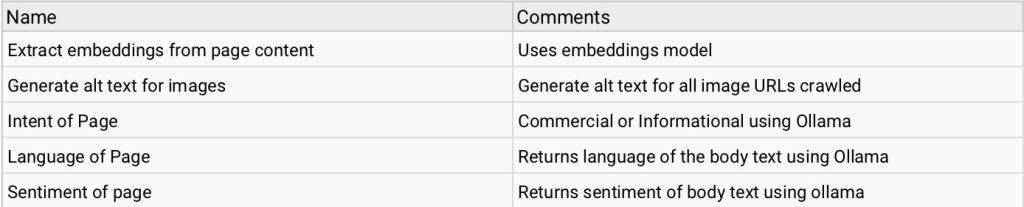
Click Add from Library to explore them and adapt to your own use cases.
By running Ollama locally, you gain full control over your AI workflows—no token limits, no external API calls, and full offline capabilities. It’s a great choice for privacy-conscious SEO professionals or anyone who wants to experiment with LLMs in a crawler-first environment.
Conclusion
By pairing Ollama with Screaming Frog, you unlock a fully local AI-powered crawler that can perform intelligent analysis without relying on third-party APIs. From generating structured insights to crafting contextual summaries, Ollama gives you the flexibility to experiment with custom prompts, offline workflows, and real-time content evaluation—all within the familiar environment of the Screaming Frog SEO Spider.
Whether you’re focused on performance, data privacy, or scaling technical SEO automation, this integration offers a smart, self-hosted solution that keeps you in control of your AI stack.
Published on: 2025-07-15
Updated on: 2025-07-15
