Screaming Frog 24.0 finally lets Claude drive the crawler for you. You ask, it crawls, pulls the report, and hands you the rows you actually wanted. No exports, no 10,000-line spreadsheet, no clicking through tabs hunting for the one filter you need.

The catch is that every guide so far walks you to the edge of the setup and then waves vaguely at “the official docs” right at the step that quietly breaks. This one does not do that. It is Mac only, it skips the lecture, and it spells out the three or four details that decide whether the thing connects on the first try or fails silently for an hour.
One clarification before you start, because it trips people up: there are two different things called a “Screaming Frog MCP.” One is a community project on GitHub that wraps the command-line interface and runs over stdio through uvx or Python. The other, the one this guide covers, is the native server built into 24.0. It runs as a local HTTP endpoint at http://127.0.0.1:11435/mcp. They are set up completely differently, so make sure any instructions you follow are for the native one.
Quick start
For experienced users. Each row is the short version. Full instructions are in the sections below.
| # | Do this | Key detail |
|---|---|---|
| 1 | Update the SEO Spider | v24.0 or later, Apple Silicon installer, paid license |
| 2 | Set storage mode | File > Settings > Storage Mode > Database (recommended, keeps crawls durable and listable) |
| 3 | Set the base directory | A dedicated folder such as /Users/you/sf-mcp, not your home directory |
| 4 | Enable the MCP server | Settings > MCP Server, toggle on. Endpoint: http://127.0.0.1:11435/mcp |
| 5 | Install Node if missing | brew install node (get Homebrew from brew.sh first if needed); npx ships with it |
| 6 | Get your npx path | Run which npx, then use the absolute path it returns |
| 7 | Register in Claude | Edit ~/Library/Application Support/Claude/claude_desktop_config.json, add an mcpServers entry: key sf, command set to your npx path, args set to ["mcp-remote", "http://127.0.0.1:11435/mcp"] |
| 8 | Restart and test | Quit Claude with Cmd+Q, reopen, keep Screaming Frog open, then ask “list my recent crawls” |
Prerequisites
- A licensed copy of the SEO Spider. The free version caps at 500 URLs, and the features you actually want through MCP (headless crawling, saving and loading crawls) need a paid license.
- Screaming Frog 24.0 or later, on the Apple Silicon build if you are on an M-series Mac.
- A desktop Claude client. This has to be Claude Desktop or Claude Cowork, both of which run on your Mac. The claude.ai browser app cannot reach the server, because a
127.0.0.1address resolves to your own machine and the browser app makes its connections server-side from Anthropic’s infrastructure, not from your computer. If you must use the browser, you would first have to expose the endpoint publicly through a tunnel like Cloudflare Tunnel or ngrok, which is out of scope here and worth locking down hard given the client data involved. - Node.js 18 or newer, because the bridge to the local HTTP server uses
npx.
Step 1: Update to 24.0 and grab the right build
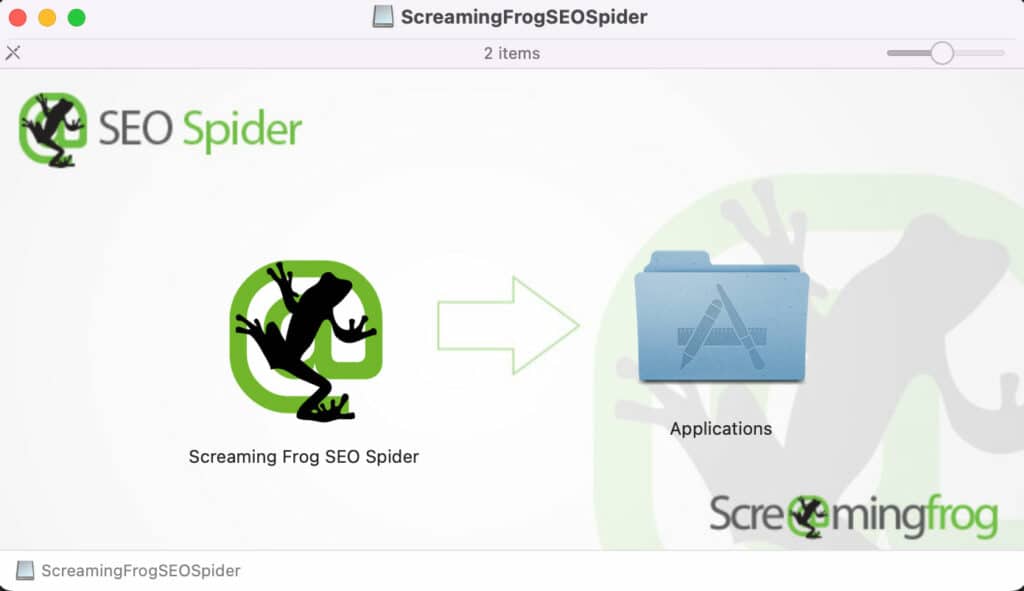
Open the SEO Spider, go to Help, and check for updates. If you are below 24.0 the MCP option will not exist. If you are reinstalling, download the macOS Apple Silicon installer rather than the Intel one, otherwise rendering and the embedded browser run under emulation and the app feels sluggish.
Step 2: Use Database Storage Mode (recommended)
Go to File, then Settings, then Storage Mode, and select Database Storage Mode. This persists each crawl to disk and keeps your project instances listable across restarts, so sf_list_crawls and sf_load_crawl have something durable to work with. Memory mode keeps crawls in RAM for the current session, which is fine for one-off work but means you lose them when the app closes. If you do recurring audits or want Claude to load a crawl from last week, Database mode is the safer default. Restart the app after switching.
Step 3: Set the allowed base directory
The MCP server can only read from and write to one folder. Create a dedicated one, for example /Users/yourname/sf-mcp, and point the server at it. Do not point it at your home directory. Every export, report, and screenshot Claude generates lands here, and any file_path you pass to an export tool is relative to it.
One privacy note worth keeping in mind: the crawl data stays local, but anything you ask Claude to analyze in a prompt goes to the model. If you are crawling staging sites or anything carrying client PII, be deliberate about what you pull into the conversation versus what you leave sitting in the export folder.
Step 4: Enable the MCP server
Go to Settings, then MCP Server, and toggle it on. Once enabled, the panel shows the endpoint, which will be http://127.0.0.1:11435/mcp. Note that the SEO Spider must stay open and running for the whole session. This is a local service, not a cloud one, so the moment you quit the app the tools go dark in Claude.

Step 5: Connect Claude
Both working clients are desktop apps, and both bridge to the HTTP endpoint the same way, through mcp-remote. The native server speaks streamable HTTP, while the Claude config spawns stdio servers it launches itself, so you cannot point it straight at the URL. mcp-remote translates between the two.
First, find your real npx path. In Terminal:
which npxNote what it returns, for example /opt/homebrew/bin/npx. You need the absolute path because Claude Desktop launches as a GUI app and often does not inherit your shell PATH, so a bare "npx" fails with “not found” even though it works fine in your terminal. This is the most common reason these setups fail silently.
If which npx comes back empty, you do not have Node installed, and npx ships with Node, so installing Node fixes both. On a Mac the cleanest route is Homebrew:
brew install nodeThat one command gives you node, npm, and npx. If you do not have Homebrew yet, grab the one-line installer from brew.sh, run it in Terminal, then run the command above. Re-run which npx afterward to confirm it resolves, and use whatever path it returns in the config below.
Then edit the config file at:
~/Library/Application Support/Claude/claude_desktop_config.json
Add the server, swapping in the path which npx gave you:
{
  "mcpServers": {
    "sf": {
      "command": "/opt/homebrew/bin/npx",
      "args": ["mcp-remote", "http://127.0.0.1:11435/mcp"]
    }
  }
}
Keep the key short, exactly sf. The native server’s tool names are already long, and a long key like screaming-frog can push them over the client’s name-length limit and break registration. If the file already has other top-level keys, add mcpServers alongside them inside the same outer braces rather than creating a second object, and watch the trailing commas.
Save, then fully quit Claude with Cmd+Q (not just closing the window) and reopen. Cowork uses the same local config mechanism, so the same entry serves both, though if you primarily live in Cowork you can also add it through its Extensions panel.
Step 6: Smoke test
In a new chat, ask Claude to list your recent crawls. If it returns your project instances with URLs and crawl counts, you are connected. If the connection itself failed, check Settings, then Developer, where the sf server will show as failed, and read the log at ~/Library/Logs/Claude/ to see exactly why it bailed.

What to actually ask it once connected
The connection is the boring part. Here is where it earns its keep. A few prompts that work today:
- “Crawl example.com and tell me when it is done.” Claude can start a crawl and poll progress, so you are not sitting on the Start button. Worth knowing: a crawl kicked off this way uses default settings. The crawl tool takes a URL and, optionally, a saved config file, but not inline options, so for anything that needs custom extraction, JavaScript rendering, or a specific scope, run it in the GUI with your real config and point the MCP at the result. The Claude-started crawl shines for quick default re-crawls.
- “Show me every 404 and redirect chain, then list which pages still link to them.” The inlinks join that normally takes three clicks and an export.
- “List every page missing a meta description or with a title over 60 characters.” Straight on-page triage without opening a single tab.
- “Pull the internal links for the /treatment/ section, then find pages about medication-assisted treatment that do not yet link to /mat-duration/, and suggest anchor text for each.” This is the internal-linking work that a plain crawler filter cannot do on its own, because it needs to reason over page content, not just match a column.
- “Load my latest /blog/ crawl, flag any article missing Article schema, and validate the structured data on the ones that have it.” A quick structured-data sweep across a section.
The pattern that matters: do not ask it to dump an entire 10,000-URL crawl into the chat. Ask for the specific slice you need. That is the whole advantage over the old export-and-upload routine, so lean into it.
Troubleshooting: The gotchas that actually cause failures
- “Could not attach” or the server shows as failed: almost always the
npxPATH problem. Use the absolute path fromwhich npx, not a barenpx. - Connection refused: the SEO Spider is closed, or the MCP toggle is off. The app has to be open.
- Empty crawl list, but connected: you are likely in Memory mode and the crawl was not persisted. Switch to Database mode (Step 2) for durable, listable crawls.
- Exports go nowhere or error: you did not set the base directory, or you passed a path outside it.
- macOS blocks the local port: the first time the server starts, macOS may prompt to allow incoming network connections. Allow it.
- Tools time out on big crawls: do not ask Claude to pull the full HTML content of tens of thousands of URLs into the chat. Export to a file in the base directory and work from that.
- One process at a time: the SEO Spider works against a single database instance, so let one crawl finish before kicking off another through MCP.
FAQs
Can Claude pull my Google Search Console data through this?
Can I schedule recurring crawls through the MCP?
What about large crawls?

Conclusion
That is the whole thing: enable the server in the SEO Spider, register the endpoint in a desktop Claude client, and you are connected. Get the absolute npx path right and scope the base directory, and it works on the first try instead of failing silently. From there, Screaming Frog stops being a separate app you tab into and becomes something your AI assistant can drive, which is where the real time savings on recurring audits and technical SEO workflows show up.
Keep in mind this is version one. Screaming Frog has been clear that the Screaming Frog SEO Spider MCP does not yet expose every feature and that they will expand functionality based on user feedback, so the list of use cases will keep growing. Set it up now, wire it into one workflow you already understand, and you are ready for whatever they add next.
Published on: 2026-05-30
Updated on: 2026-05-30
