SEO North: Ottawa's Specialist SEO Agency
SEO North helps businesses grow organic traffic through technical SEO, content strategy, and digital marketing. Founded in Ottawa by Isaac Adams-Hands, we specialize in the hardest vertical in search: addiction treatment and healthcare.
Healthcare & Rehab SEO ServicesAll SEO ServicesReal Results, Shown in Real Data
Screenshots from client accounts. No stock graphs, no mockups.
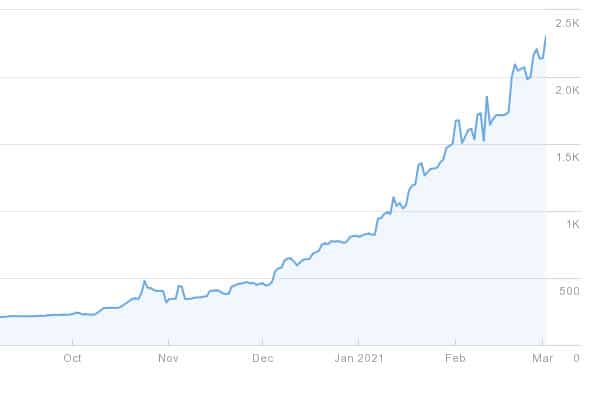
We grow qualified organic traffic
Rankings are a means; revenue is the goal. We build organic traffic from searches your customers actually make, then prove it with your own analytics, not ours.
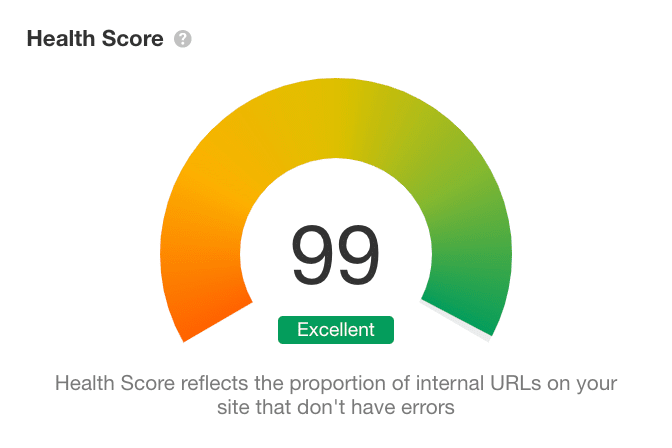
We fix what holds sites back
Crawl errors, Core Web Vitals, index bloat, and structural problems that quietly cap your rankings. Technical SEO is where we started and it is still what we are known for.
What SEO North Does
Broad enough to cover the whole channel. Deep where it counts.
Technical SEO
Technical audits covering site architecture, crawlability, indexation, Core Web Vitals, and schema markup deployment. The engineering layer most agencies outsource, handled in-house.
Content & On-Page SEO
Keyword research, content strategy, internal linking, and on-page optimization built around search intent. SEO content that answers real questions instead of chasing word counts.
Digital PR & Link Building
Authority built through digital PR, competitor analysis, and link acquisition that survives algorithm updates because the backlinks were earned, not rented.
Local SEO & Google Business Profile
Google Business Profile management, local keyword targeting, citations, and review strategy for businesses that win or lose in the map pack.
AI Search & Generative Engine Optimization
Visibility in AI Overviews, ChatGPT, and Perplexity. Entity optimization and AEO strategies for the growing share of searches that never show ten blue links.
Web Development & UX
Custom WordPress builds, user experience improvements, and conversion rate optimization that turn keyword rankings into qualified leads.
The SEO agency behavioral health providers call
Most agencies dabble in every industry. SEO North went the other way: we specialize in addiction treatment, detox, and behavioral health, the most competitive and most heavily moderated corner of Google. YMYL quality standards, medical review requirements, LegitScript certification, state licensing signals: we work inside these constraints every day.
- E-E-A-T infrastructure: medical reviewers, credentialed authors, and clinical accuracy audits
- Local SEO and Google Business Profile management for treatment facilities
- Recovery strategies for sites hit by core updates


Who is behind SEO North?
SEO North was founded in Ottawa, Ontario by Isaac Adams-Hands, an SEO Director with two decades of experience spanning technical SEO, web development, and digital marketing for organizations from startups to enterprise. Not to be confused with similarly named agencies elsewhere: SEO North is the original Ottawa firm, and every engagement is led by Isaac personally.
You will not be handed to a junior account manager. The person who audits your site is the person who fixes it.
How SEO North Works
1. Audit
A full technical and content audit using Screaming Frog, Ahrefs, and Google Search Console. You get findings in plain language, ranked by impact, before any commitment.
2. Fix & Build
We implement, not just recommend. Technical fixes, content, internal architecture, and user experience improvements, shipped by the same team that found them.
3. Prove
Transparent monthly reporting from your own Search Console and analytics. If the organic traffic line does not move, you will hear it from us first, along with what changes next.
Frequently Asked Questions
Is SEO North the agency in Ottawa or Vancouver?
Ottawa. SEO North is based in Ottawa, Ontario, founded and led by Isaac Adams-Hands. We are not affiliated with any similarly named agencies in other cities. If you are looking for the Ottawa SEO agency that specializes in healthcare and local SEO, you are in the right place.
What kind of businesses does SEO North work with?
Our deepest specialization is addiction treatment and behavioral health, where we run full-service SEO for facilities across North America. We also work with local Ottawa businesses and select clients in other industries where our technical SEO and web development strengths fit.
How do you deliver SEO results?
Three layers: technical SEO fixes the foundation (site structure, indexation, page speed, user experience), on-page and content work targets the searches your customers make, and off-page digital marketing builds the authority to rank for them. Everything is measured in your own Google Search Console, so the organic traffic growth is verifiable, not vendor-reported.
How long does SEO take to show results?
Honest answer: initial movement in 60 to 90 days for technical fixes, meaningful organic traffic growth in 4 to 8 months, and compounding returns after that. Anyone promising page one in 30 days is describing either paid ads or a scheme that will cost you a penalty later.
What tools does SEO North use?
Ahrefs, Screaming Frog, Google Search Console, and Google Analytics (GA4) form the core stack, along with custom auditing tooling we have built in-house for healthcare compliance, content accuracy reviews, and AI search visibility tracking.
Do you optimize for AI search like AI Overviews and ChatGPT?
Yes. A growing share of searches end in AI Overviews, ChatGPT, or Perplexity instead of a traditional results page. We track AI search visibility, structure content and entities so machines can cite them confidently, and treat generative engine optimization as part of every engagement rather than an upsell.
How should I choose between SEO agencies?
Ask for three things: case studies with real numbers, transparent reporting from your own Google Search Console rather than vendor dashboards, and a plain-language explanation of how they build links. White-hat SEO shows its work; anyone vague about backlinks or promising guaranteed first-page rankings is a liability. We are happy to be evaluated on exactly those criteria.
Work with SEO North
Tell us about your site, and we will tell you honestly whether we are the right fit.
Contact Us