Screaming Frog’s integration with OpenAI allows you to run custom AI prompts on crawl data in real time. Whether you’re summarizing page content, generating alt text, or analyzing sentiment, OpenAI can enhance your SEO audits at scale.

Setting Up OpenAI in Screaming Frog: Step-by-step
1. Connect to OpenAI
To get started, go to:
Configuration > API Access > AI > OpenAI
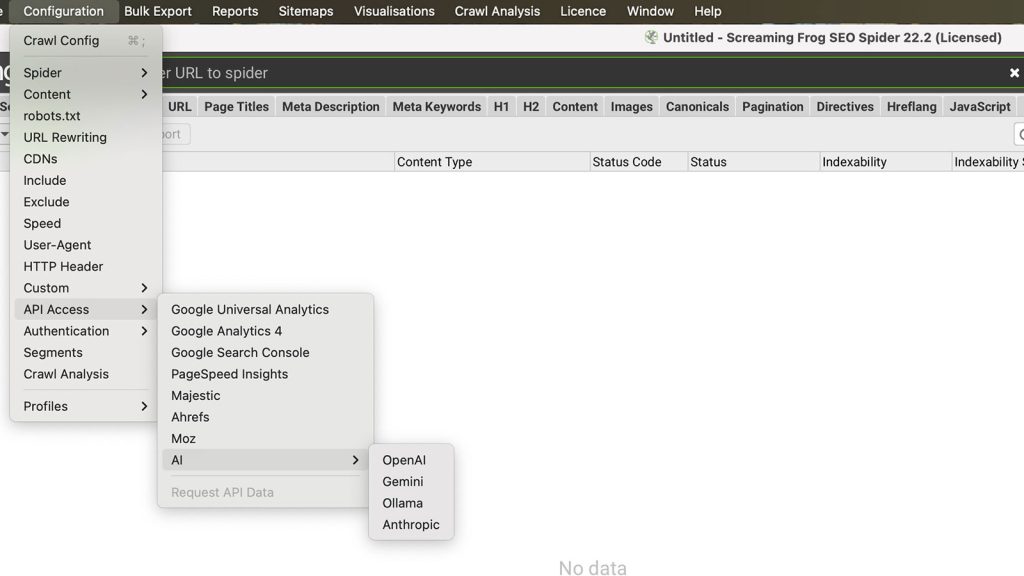
Before connecting, you’ll need:
- An OpenAI account
- A funded API plan (this is separate from a ChatGPT Plus subscription)
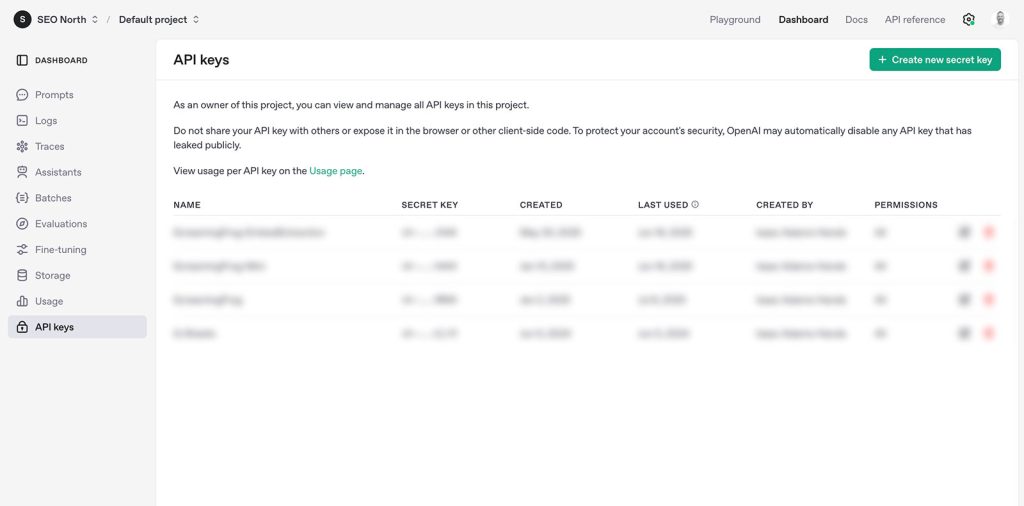
- Your personal OpenAI API key
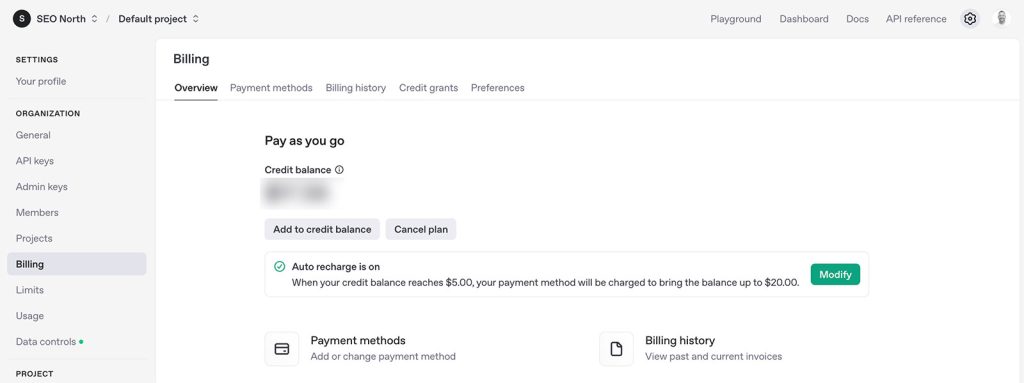
Once signed in, go to OpenAI’s Billing section to add credit and set spending limits. Screaming Frog requires the account to be funded in order to access the API.
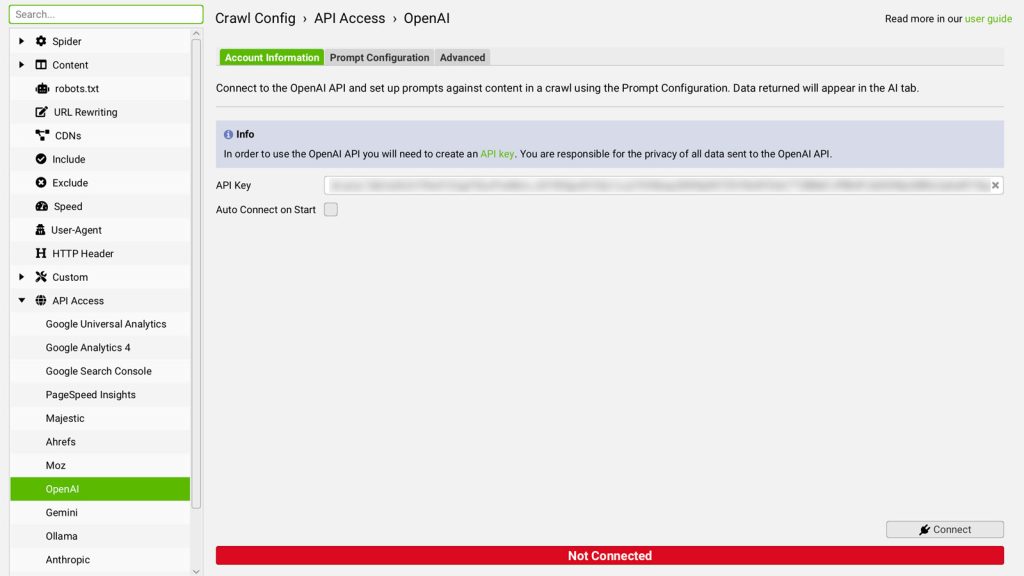
Paste your API key into the Account Information tab in Screaming Frog, then click Connect.
2. Create & Configure Prompts
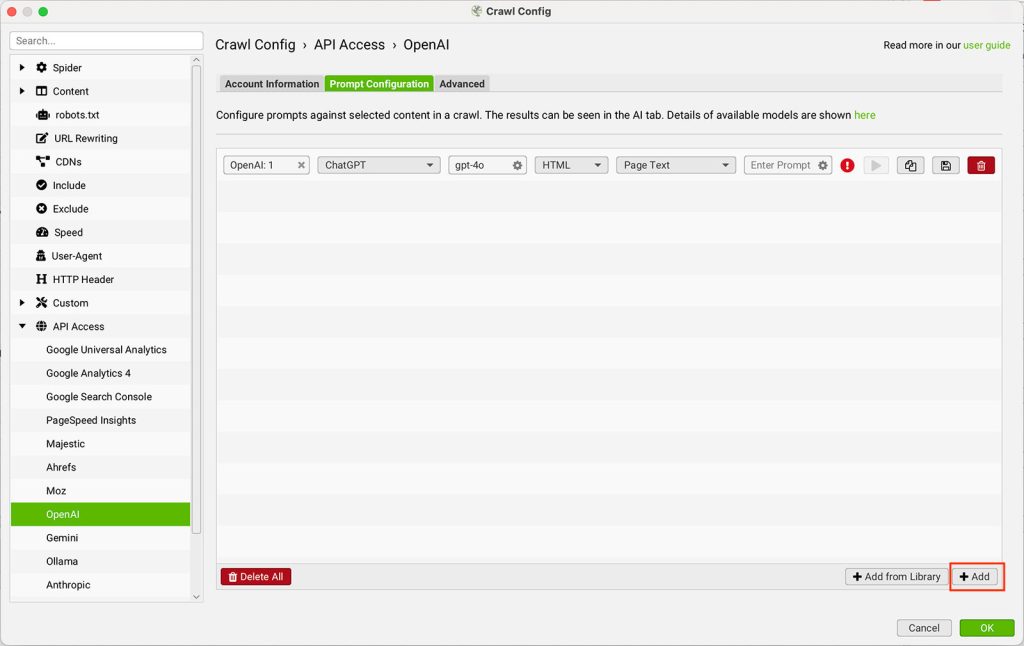
After connecting OpenAI, switch to the Prompt Configuration tab to set up prompts that will run during your crawl.
You can access ready-made prompts via Add from Library, or build and manage your own in the User tab. Use the export/import buttons to share prompt collections across teams or projects.
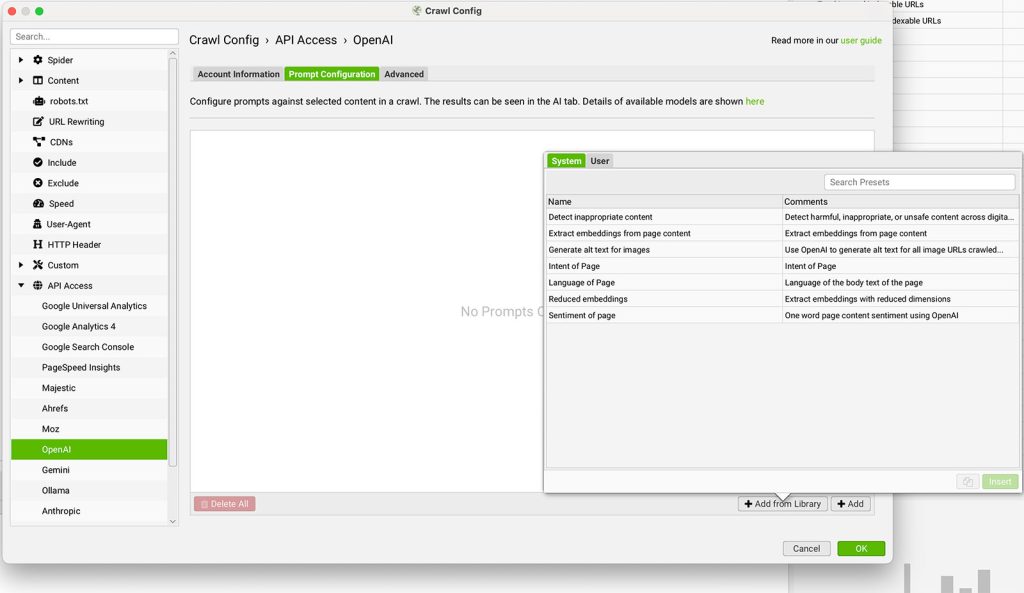
To create new prompts, click Add to create a new prompt and specify the following:
- Model category (e.g., ChatGPT, Embeddings, Moderation)
- Model version (e.g., gpt-4o)
- Input type (Page Text, HTML, or custom extraction)
- Prompt text – Write clear instructions for the AI to follow.
Which OpenAI Model Should You Use?
Choosing the right model depends on your budget, the complexity of the task, and how many URLs you plan to process. Here is a quick breakdown to help you decide.
| Model | Best For | Speed | Relative Cost | Notes |
|---|---|---|---|---|
| GPT-4o | Complex prompts like sentiment analysis, intent classification, or content audits that require nuanced reasoning | Moderate | Higher | Best accuracy for multi-step or detailed instructions |
| GPT-4o Mini | Most standard SEO tasks like generating meta descriptions, alt text, or page summaries | Fast | Low | Strong balance of quality and cost for high-volume crawls |
| GPT-3.5 Turbo | Simple extraction or tagging tasks where speed and cost matter more than depth | Fastest | Lowest | May struggle with complex or multi-part prompts |
For most SEO workflows, GPT-4o Mini hits the sweet spot. Reserve GPT-4o for prompts that require deeper analysis, and use GPT-3.5 Turbo when you are processing thousands of URLs on straightforward tasks where a few inaccuracies are acceptable.
Tip: Test the same prompt across models using the built-in test feature before committing to a full crawl. You may find that a cheaper model handles your use case just fine.
3. Store HTML
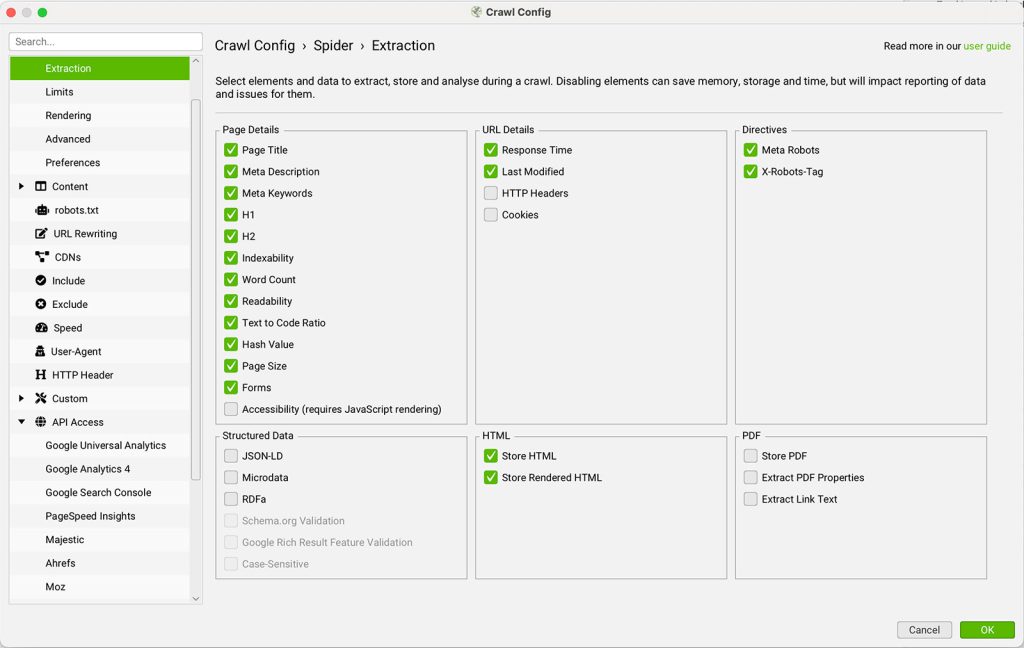
If you’re using “Page Text” or “HTML” as input, you must enable HTML storage under:
Config > Spider > Extraction > Store HTML
4. Test Your Prompt
Before starting a full crawl, test your prompt for accuracy and formatting:
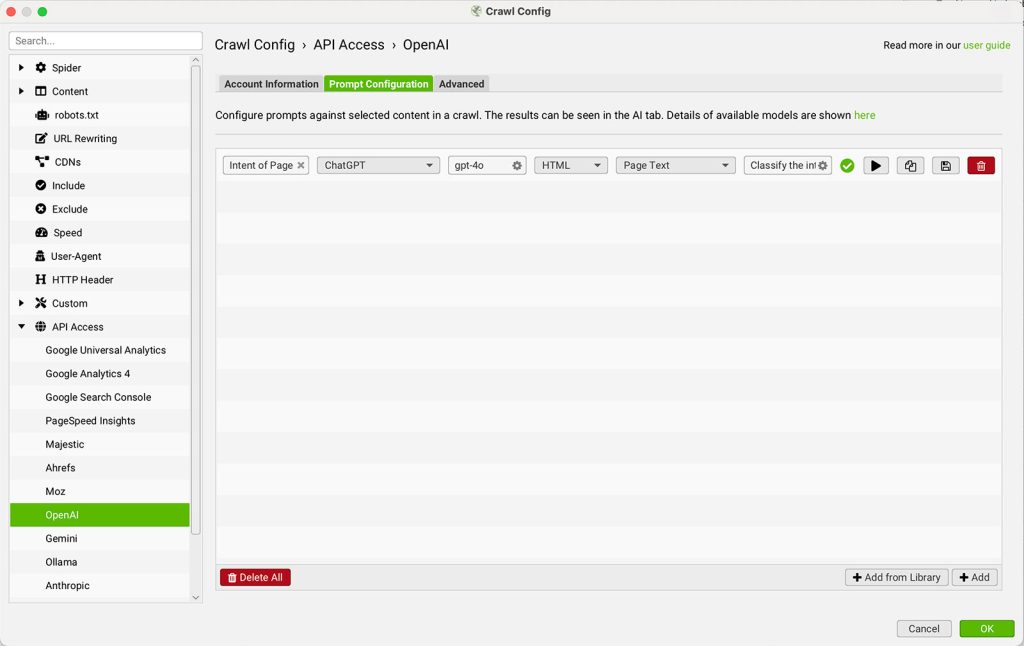
- Click the play icon beside your prompt.
- Enter a sample URL and hit Test.
- Screaming Frog will display the extracted content and the AI-generated response.
This lets you validate the input/output and refine the prompt if needed.
5. Run the Crawl
Once you’re happy with your setup:
- Enter the website URL in the main crawl field
- Click Start
Screaming Frog will crawl the site and send selected page content to OpenAI based on your configured prompts. You can monitor progress in real time via the API Progress Bar.
6. Review AI Results
After the crawl finishes (or as it progresses), head to the AI tab to view prompt responses. Each prompt appears as its own filter and column, titled based on the name you assigned.
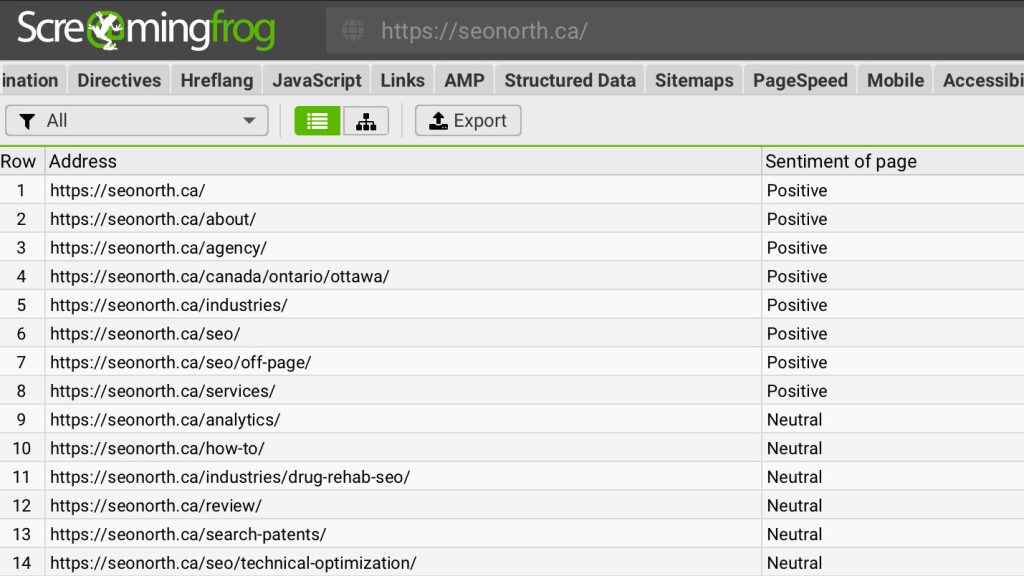
You’ll also find this data integrated into the Internal tab for cross-analysis alongside other crawl metrics. This is useful for exporting insights or combining results with other reports.
Saving, Reusing, and Sharing Custom Prompts
Once you’ve created a custom AI prompt, you can save it by clicking the save icon next to the prompt. This adds it to your personal prompt library for future use.
To access saved prompts, go to Add from Library and click the User tab, where all your previously created prompts are stored.
If you’d like to share your prompts with teammates or reuse them across different projects, you can export them in JSON format using the Export button in the same menu.
Later, they can be brought back in using the Import option, making it easy to transfer prompt setups between devices or collaborators.
To include your AI prompt configuration in a broader Screaming Frog setup, you can save everything as part of a configuration profile under:
Config > Profiles > Save As
You can also choose to make this setup your default by selecting Set As Default from the same menu—ensuring your preferred prompts are always ready to go when launching a new crawl.
Using Multiple Input Sources in a Single Prompt
For more advanced use cases, you can configure a prompt to pull from multiple data sources at once—giving you greater control over the context passed to OpenAI.
To do this, click the gear icon beside the prompt and open the Edit Prompt window.
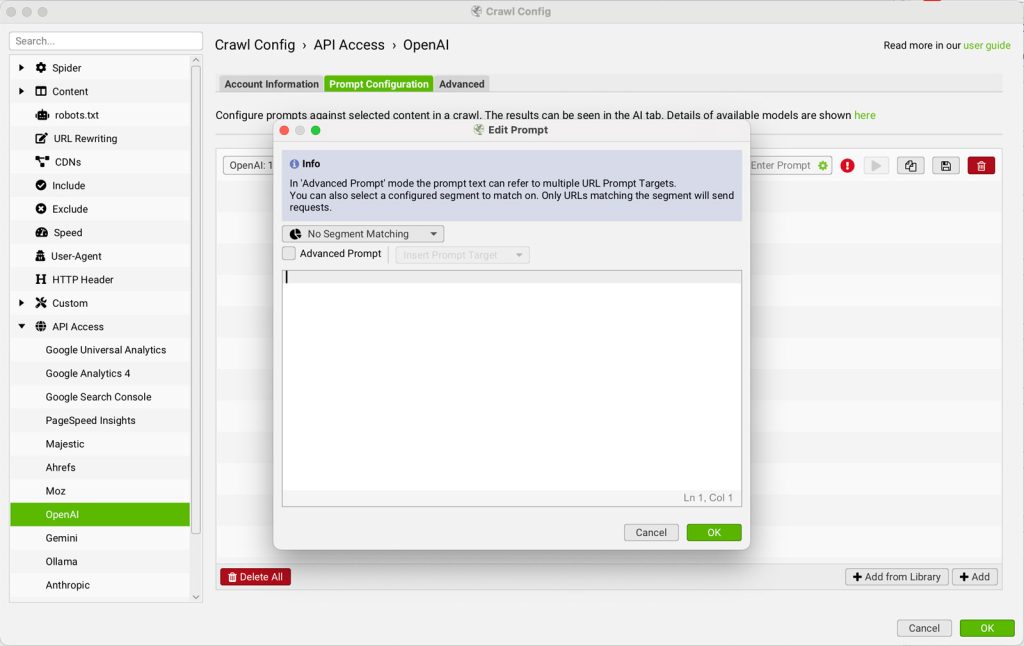
Enable the “Advanced Prompt” option to unlock the ability to select multiple input types.
For example, you can combine Page Text, Custom Extractions, and other available elements to craft a highly targeted prompt tailored to your specific analysis goals.
This flexibility allows you to build richer, more intelligent instructions for the model—especially useful for complex content evaluations, structured data generation, or contextual summaries.
Target Prompts by Segment or Specific Issues
To maximize efficiency and reduce token usage, you can apply OpenAI prompts only to specific segments of your crawl—rather than every page or element indiscriminately.
To do this, create a segment that defines the exact conditions where a prompt should apply. For example, you might want to run a prompt only on pages that have missing image alt text.
Start by going to:
Config > Segments > Add
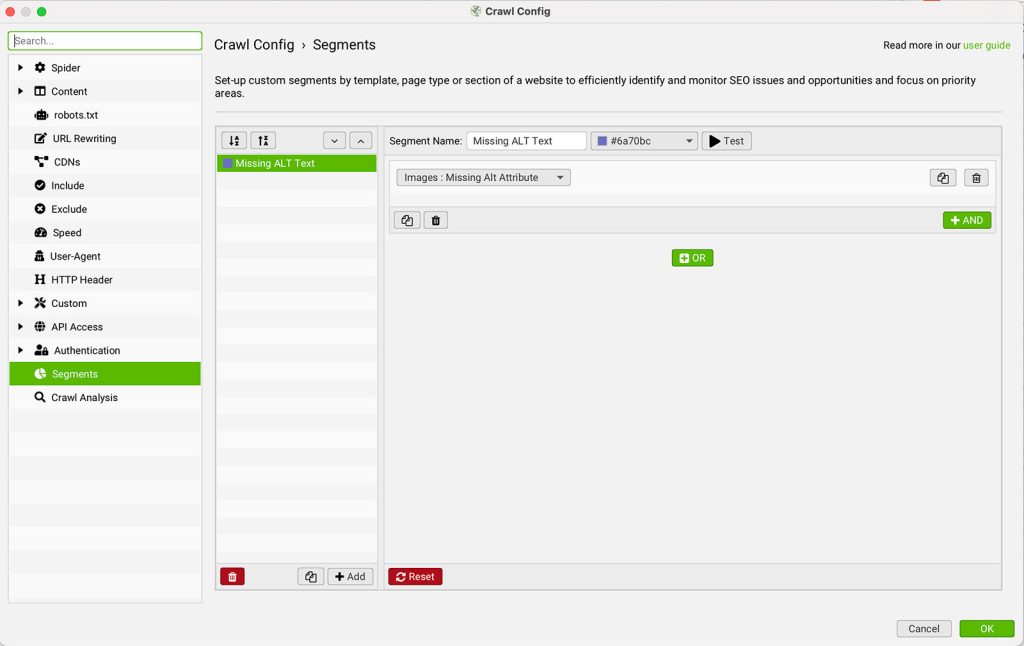
Set the rules for the segment, such as selecting the “Issue” filter and choosing “Missing Alt Text” from the list.
Once your segment is created, head to the Prompt Configuration screen.
Click the gear icon beside your prompt, then use the “Segment Matching” dropdown to assign your custom segment.
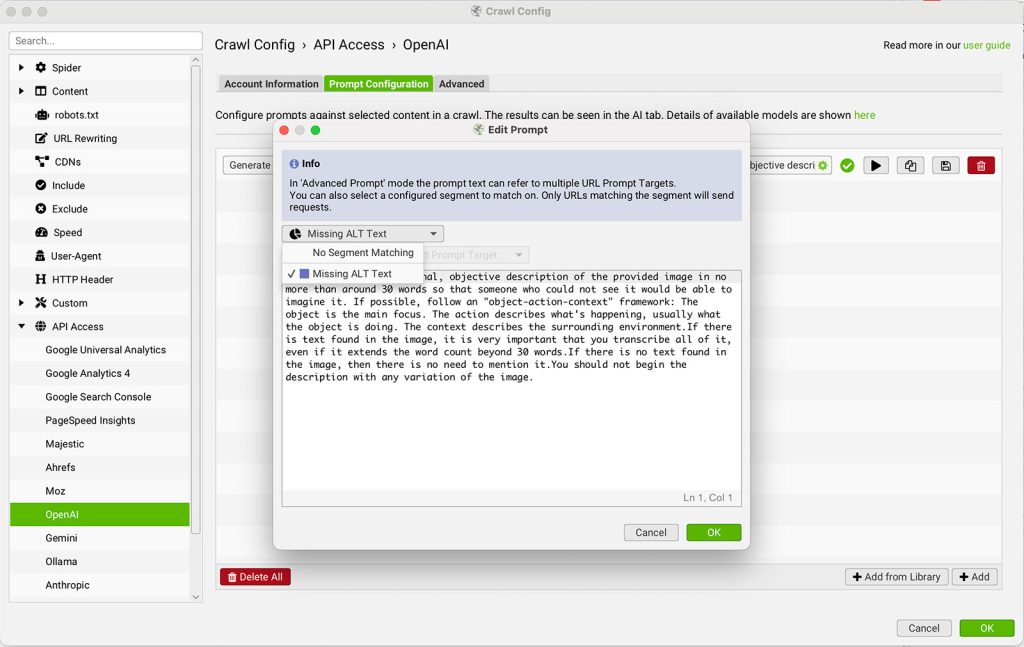
With this setup, the prompt will only execute for URLs that meet your defined criteria—for instance, generating alt text only where it’s missing.
This method ensures that you’re applying AI thoughtfully and selectively, rather than spending credits on pages or elements that don’t need attention.
Troubleshooting Common Issues
If something is not working as expected, these are the most common issues and how to fix them.
API key not connecting or returning errors
This usually means your OpenAI account does not have a funded API balance. A ChatGPT Plus subscription does not grant API access. Log into platform.openai.com, navigate to Billing, and add credit to your account. Then re-enter your API key in Screaming Frog.
AI columns are empty after the crawl
The most common cause is forgetting to enable Store HTML. If your prompt uses “Page Text” or “HTML” as the input source, Screaming Frog needs to store the rendered page content in order to pass it to OpenAI. Go to Config > Spider > Extraction and check “Store HTML” before re-crawling.
Prompts running on every page and burning through credits
If you have not set up segment matching, your prompt will fire on every URL in the crawl. Use Config > Segments to define conditions (such as only pages with missing alt text or pages in a specific subfolder), then assign that segment to your prompt via the gear icon in the Prompt Configuration screen.
Slow crawl speeds when using AI prompts
Each URL that triggers a prompt requires an API call, which adds latency. To speed things up, reduce the number of URLs that trigger prompts by using tighter segments, or switch to a faster model like GPT-4o Mini. You can also lower the number of concurrent AI requests in the crawl settings to avoid rate-limiting from OpenAI.
Inconsistent or low-quality AI responses
If the output varies significantly across pages, the issue is almost always the prompt itself. Be specific with your instructions, include the desired output format, and set constraints like word count or response structure. Test the prompt on several different page types before running the full crawl to make sure it handles edge cases.
Conclusion
This tutorial has shown how Screaming Frog’s OpenAI integration can take your technical SEO efforts to the next level. By combining the power of OpenAI’s ChatGPT with the flexibility of the Screaming Frog SEO Spider, you can automate advanced tasks like generating meta descriptions, identifying thin content, classifying intent, and much more—all directly within your crawler workflow.
Whether you’re working in ecommerce, digital marketing, or managing large enterprise websites, using LLMs like ChatGPT enables smarter, more scalable optimization. By targeting specific issues and segments, you can avoid wasted API credits while surfacing actionable insights faster than ever before.
And since prompts can be saved, reused, and shared, this makes Screaming Frog one of the most versatile and powerful SEO tools available—especially when combined with the intelligence of AI.
To learn more about Screaming Frog’s features or download the SEO Spider, visit screamingfrog.co.uk.
With just a little configuration, you can use ChatGPT directly in your SEO crawler and bring real-time, intelligent automation to your audits.
Frequently Asked Questions
Do I need a ChatGPT Plus subscription to use OpenAI in Screaming Frog?
What happens if I run out of API credits during a crawl?
What are embeddings and what can I use them for in Screaming Frog?
Published on: 2025-07-15
Updated on: 2026-07-14
